Rules
Rules
A rule is a piece of Python code that is applied on a channel of a datasource which can validates, estimate, calculate, forecast or do anything that is needed to the ingested data. Rules provide the flexibility to change the behavior of your processes without depending on platform release changes.
Rules mainly process timeseries data of a given datasource, but they also have access to tags, channels, channel classifiers and time-slice groups. Rules can operate on timeseries coming from an ingestion but they can also work on already stored data.
A flow consists of sequences of rules. In a flow, a pandas dataframe is carried over from the first rule to the last rule. The dataframe starts with the timeseries data of the source channel together.
All flows are made up of one or more rules, which can be found under the ‘Rules & Algorithms’ section in the Energyworx platform, separated by rule type:
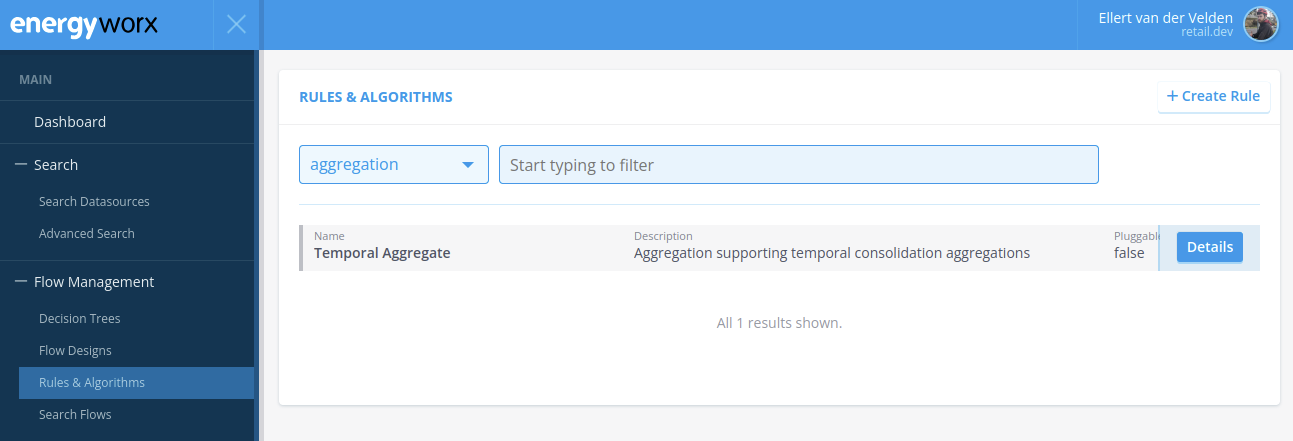
Within the platform, each rule has a specific rule type. The rule types can be customized and serve the purpose of categorizing rules that behave in a similar manner or are used for a similar process. New rule types can be introduced.
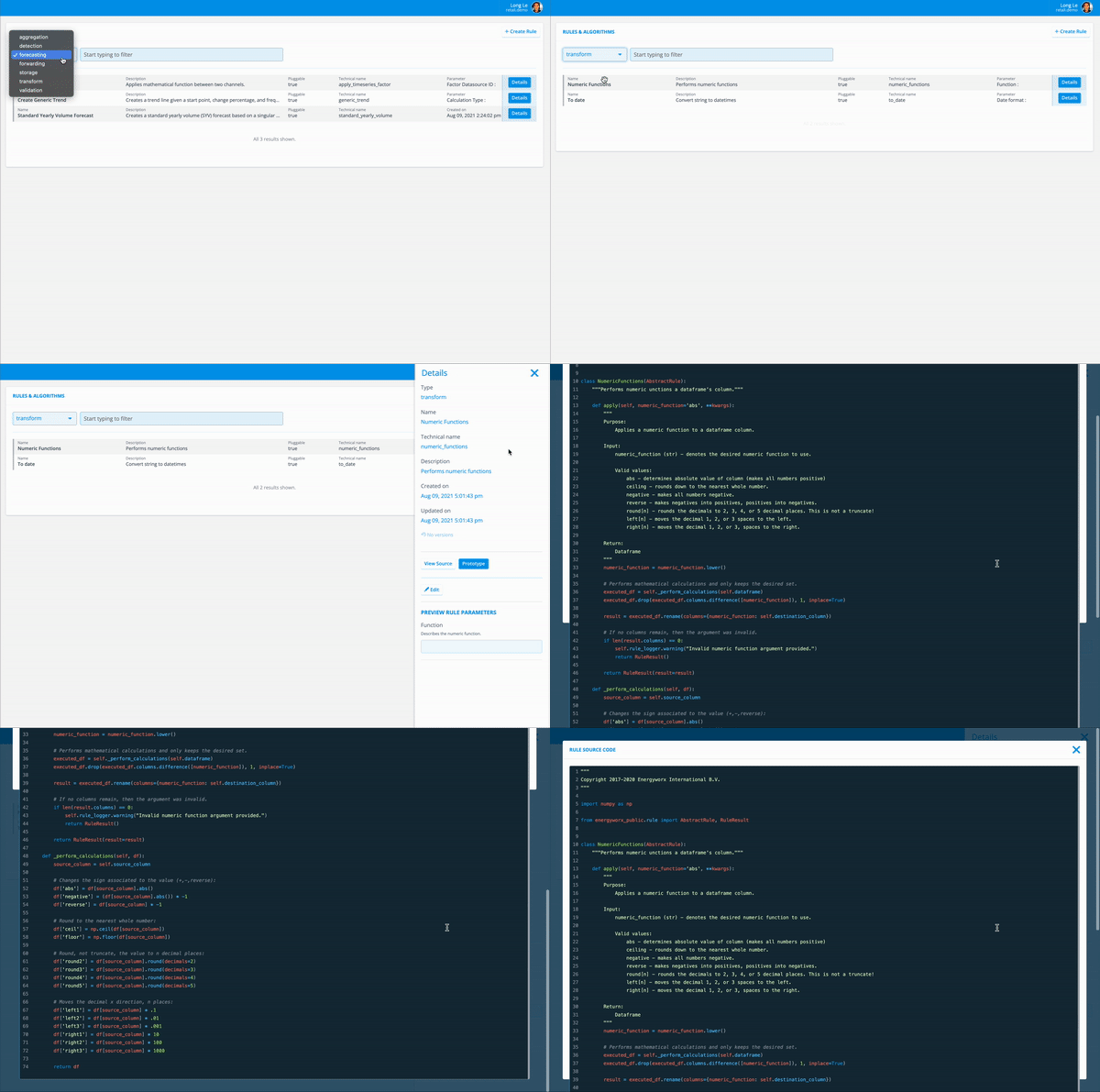
This page enables you to search for a specific rule, view its source code, and make adjustments if necessary.
This image shows a preview of a rule and how a user would go about accessing it:
The following sections describe the 2 main types of rules:
- Transform rules: they are used in Transformation Configurations. (See Transformation Configurations for more information)
- Flow rules: they are used in Flow Designs. (See Flow Designs for more information)
Transform rules
Transform rules are rules that ‘transform’ incoming data. They map the incoming data into any attribute dynamically configurable in the Transformation configurations (e.g. tag names, timestamps of values of channels, etc.)
Examples of transformations can range from simply dividing all incoming numerical data by a factor 1000 or adding a prefix to incoming strings; to mapping incoming values to entirely different values or retrieving specific portions of incoming strings with Regex. Transform rules can be chained together to create transformations that consist of multiple steps. So, for example, if one has the string 'WEATHER_STATION_XXX_KNMI' with 'XXX' being an ID, and wishes for this to be transformed to 'KNMI_XXX', then this result can be achieved using a combination of a rule to retrieve the ID and another rule to add the 'KNMI_' prefix.
As transform rules are applied on incoming data, they are the only type of rule that can be used within Transformation Configurations. While transform rules can be used within flow designs, it is very uncommon for them to be, due to transform rules being required to inherit a different base class than rules of other rule types (AbstractTransformRule instead of AbstractRule). This separate base class lacks many of the methods that AbstractRule has, making it hard to use within flows.
An example of a simple transform rule can be found below:
from energyworx_public.rule import AbstractTransformRule


class AddPrefixSuffix(AbstractTransformRule):
    def apply(self, string_value, prefix_suffix_flag, **kwargs):
        """
        Rule that adds a specified `string_value` as either a prefix or suffix to the channel data.

        Args:
            string_value (str): String to add.
            prefix_suffix_flag (str): Add `string_value` as `prefix` or `suffix`.

        Returns:
            pandas.Series

        """

        # Add prefix or suffix
        index = self.dataframe.dropna().index
        if prefix_suffix_flag == 'prefix':
            result = self.dataframe[self.dataframe.columns[0]][index].apply(lambda x: string_value + str(x))
        else:
            result = self.dataframe[self.dataframe.columns[0]][index].apply(lambda x: str(x) + string_value)

        # Return it
        self.dataframe[self.dataframe.columns[0]][index] = result
        return self.dataframe
Flow rules
Flow rules are rules that can be used in a flow design. Their purpose is to execute a particular action within a flow.
Creating a rule
In order to use the console for creating new Rules, simply take the following steps:
- Go to [Flow Management → Rules & Algorithms] and click [+ Create Rule].
- Use the dropdown menu to select a Rule Type, or click the New Rule Type hyperlink to add a new one.
- Fill in the Display Name, Technical Name and Description fields (all fields are mandatory).
[Note: The Technical Name must always be in lowercase without any spaces or special characters except ‘_’. For instance rule_name_check. The Technical Name cannot be changed when the Rule has been created.] - Use the dropdown menu to set the Requirements (No Requirements is also an option).
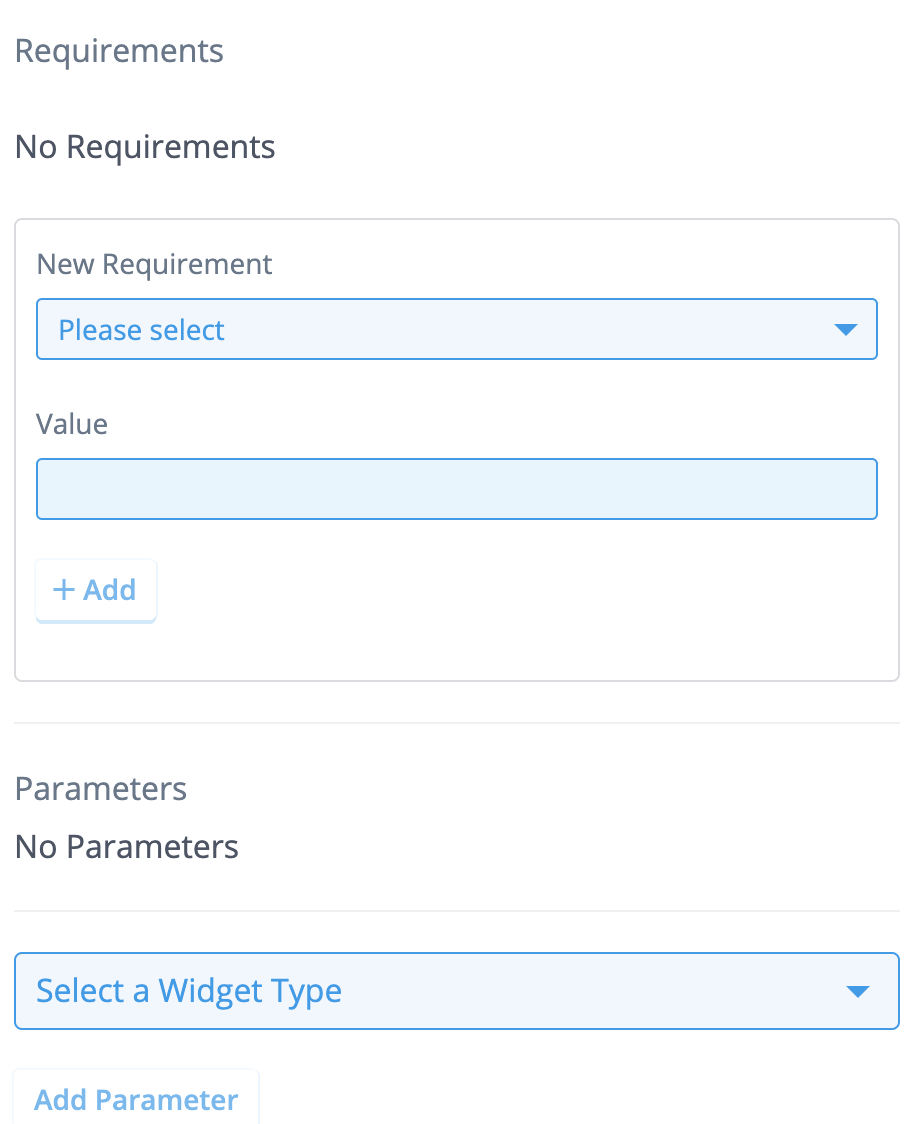
- Use the [Select a Widget Type] dropdown menu to select a Widget Type and click the [Add Parameter] button.
[Note: This step is optional and not mandatory. Click Rule Parameters for a complete list of the available Parameters.] - Paste your Python code in the Source Code field.
[Note: First-party Energyworx rules will not show the code, but will work as expected.] - Click [Save] when you’re done.
Edit an existing rule
The Rules and Algorithms page enables you to search for a specific rule, view its source code, and make adjustments if necessary.
- Go to [Flow Management → Rules & Algorithms].
- Use the dropdown menu or the search field to narrow down your search.
- Click the [Details] button of the Rule you’re looking for. A pane will appear on the right side of the screen, displaying Details and a Parameters section.
- Click the [View Source] button. The Rule Source Code page will open in a new window.
- Click [Edit] in case you need to make any changes.
For editing an already existing Parameter, simply click the Expand icon next to the Parameter name. Make any changes you need and click [Save] when you’re done. Changing the Parameter changes the algorithm, and therefore it impacts the way our platform processes your data.
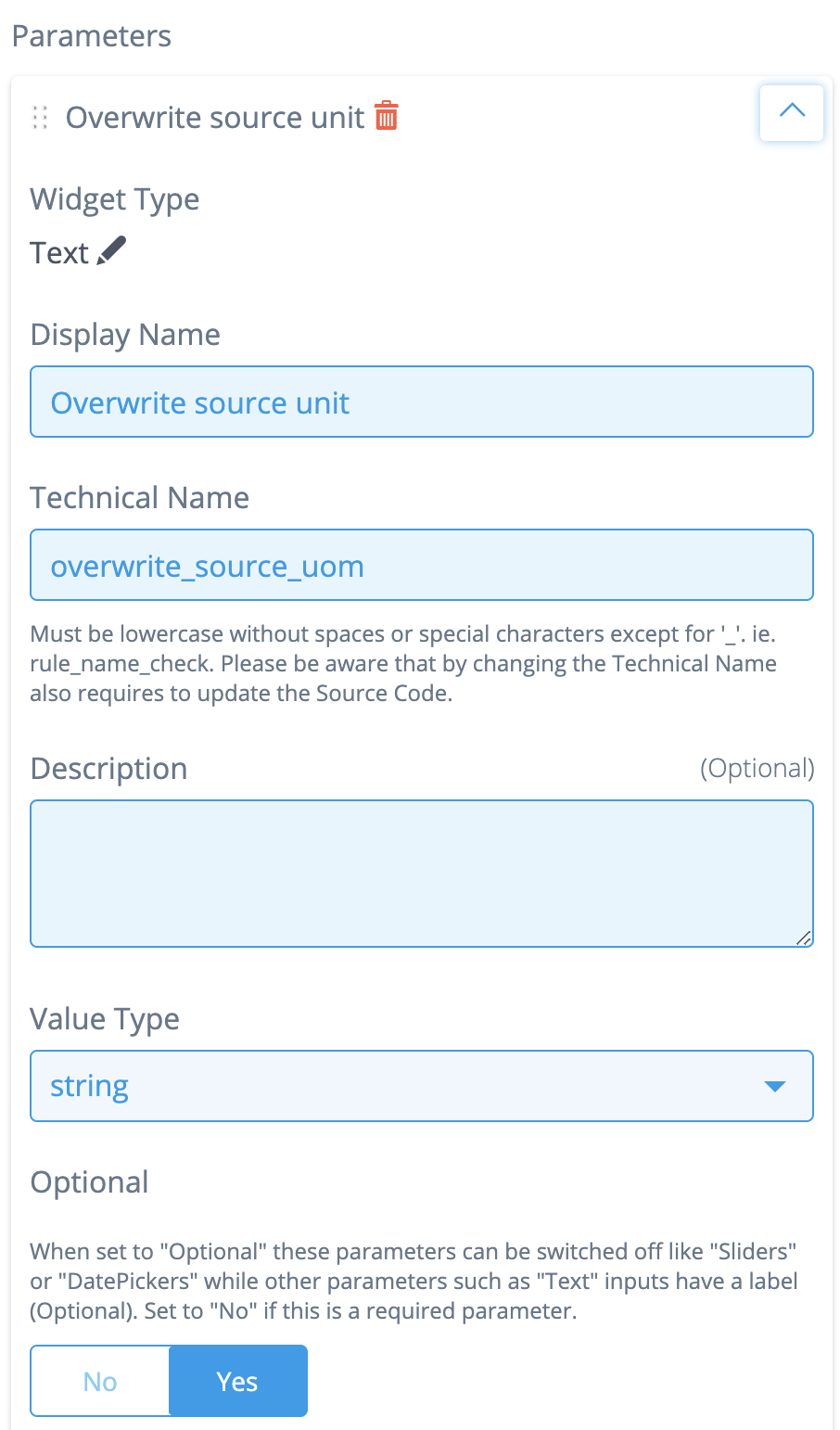
Continue with the following steps for adding new Parameters to a rule.
- Scroll down to the [Select a Widget Type] dropdown-menu at the bottom of the page, and select a Type (Datasource, Flowconfig, etc.).
- Click the [Add Parameter] button, which is no longer greyed out now. A new section appears that allows you to set up the Parameter.
- Fill in the Display Name and Technical Name fields (these are always mandatory, and the Technical Name needs to be unique).
Depending on the Widget Type, other types of fields and toggles are applicable (mandatory and optional). Please note that before filling in the Display Name field, the new Parameter’s name is Widget Type by default. This changes as soon as you fill in the Display Name.
Creating new Rules for your namespace can only be executed by users with the Rule Owner permission. Click the Identity Access Management hyperlink for more information on how to manage permissions.
Rules implementation
You can learn how to write the implementation of a rule in Rules Implementation.